Browser Terminal
The Browser Terminal puts a shell inside the same network and identity boundary as the control plane, so operators never need to install Azure tools on a laptop. It is reached from the sidebar Terminal entry or any /terminal link.
When To Use It
Use the browser terminal when you genuinely need a shell — for example:
- Running
elastic-blastorkubectlcommands the dashboard does not expose yet. - Inspecting AKS pod logs or
kubectl describeoutput for a failed job. - Driving
azcopybetween the workspace Storage account and a curated dataset. - Running
azqueries against the workspace under the shared user-assigned managed identity.
For everything researchers do day-to-day — submitting a search, watching a job, downloading results — keep using the Dashboard, New Search, Recent searches, and Results. The dashboard wraps the same operations safely (no token paste, no command typos, no destructive defaults).
Overview
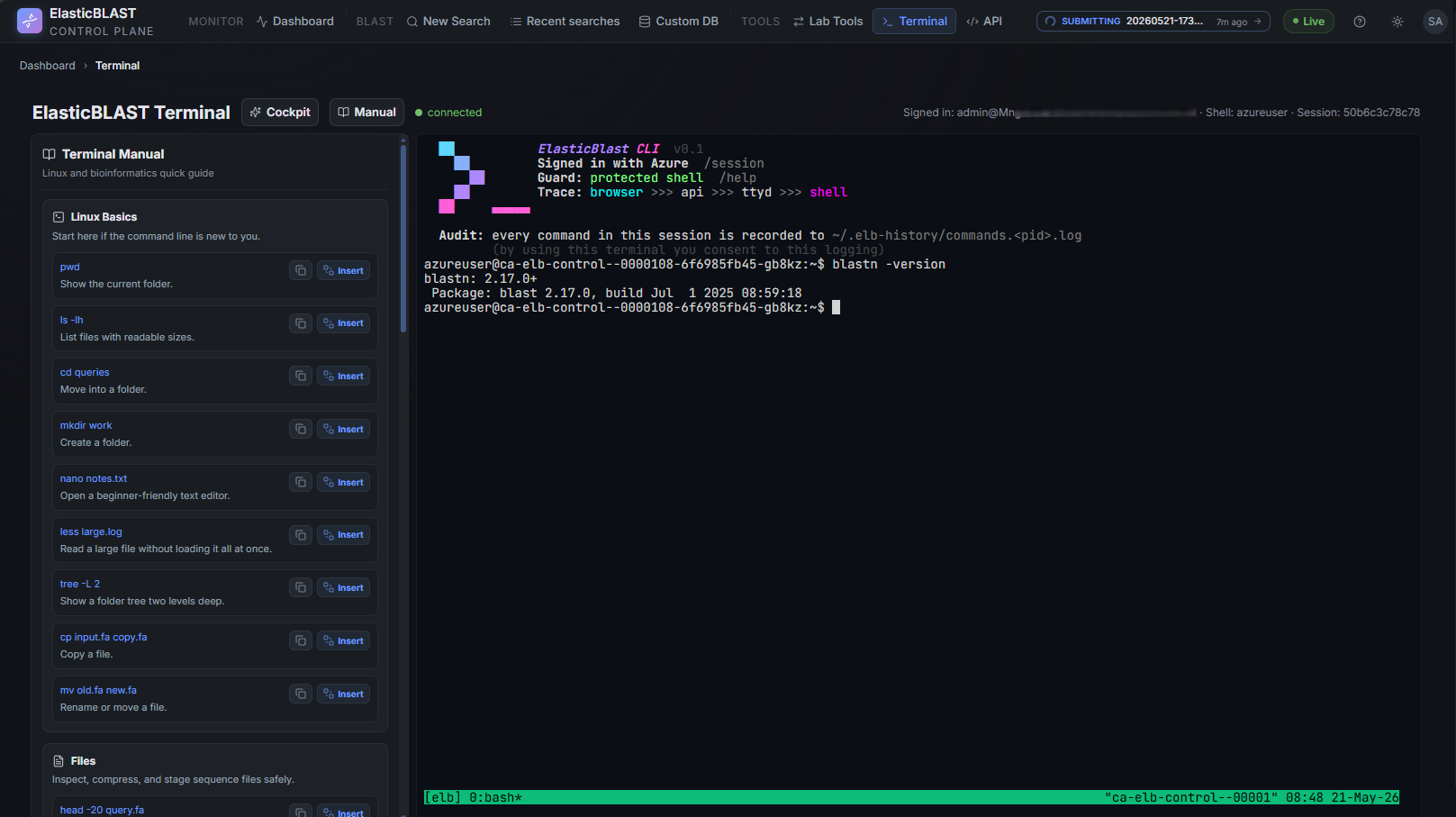
The page has two regions:
- Terminal pane (centre) — an xterm.js view connected through a WebSocket proxy to the
terminalsidecar's loopback ttyd. Standard keyboard shortcuts work; output scrollback is kept for 10,000 lines. - Side panel (right) — a Cockpit view by default, with a Manual view available from the panel toggle. The cockpit surfaces curated workflows, command snippets, terminal health, and Azure CLI sign-in status; the manual pulls full how-tos for
elastic-blast,kubectl, andazcopy. Snippet rows let you Copy to the clipboard or Insert directly into the live terminal.
Status pills near the prompt show the connection state — connecting, connected, disconnected, or error — and the caller display name plus the shell user the session is running as.
How The Connection Works
The browser cannot send Authorization headers on a WebSocket upgrade, so the page uses a two-step exchange:
POST /api/terminal/ticket— the api sidecar validates your MSAL bearer and returns a short-lived single-use ticket.WebSocket /api/terminal/ws?ticket=<ticket>— the api proxies bytes to theterminalsidecar's loopback ttyd (127.0.0.1:7681).
The terminal sidecar ships with the validated ElasticBLAST toolchain (elastic-blast, kubectl, azcopy, az, BLAST+). $HOME (/home/azureuser) is ephemeral — user files do not survive a Container App revision swap, so stage data to workload Storage via azcopy and reuse short-lived az device-code sign-ins per session. The terminal is never exposed directly to the internet — only the api sidecar can reach it.
Sign In For Azure Commands
The cockpit shows the current Azure CLI sign-in state and refreshes it on demand. If az commands fail with Please run 'az login' to setup account, run the suggested device-code login from the cockpit hint:
The browser tab keeps focus while you complete the device-code flow. When sign-in completes, the cockpit pill flips to Signed in and shows the active tenant and subscription.
The terminal uses the shared user-assigned managed identity for SDK calls made by the api / worker. The interactive az shell sign-in is for ad-hoc CLI commands you type into this terminal — it does not change the identity the dashboard backend uses.
Safety Rules
The terminal is a real shell — treat it like one:
- Read commands before you press Enter, especially ones the cockpit marks with a destructive impact badge.
- Never paste tokens, subscription IDs, or full SAS URLs into a shared screen.
- Prefer the cockpit's curated snippets over typing flag combinations from memory.
- Use
kubectl --context …deliberately; the session inherits whateverkubeconfigthe sidecar shipped with. - Close the tab when you are done. Tickets expire automatically, but tidy disconnects are still better.
Troubleshooting
| Symptom | Likely cause | What to do |
|---|---|---|
Connection stays on connecting |
Ticket exchange timed out (default 8 s). | Refresh the page; if it persists, check the api sidecar health from the Dashboard. |
Terminal unavailable page |
The terminal bundle failed to load (route is feature-flagged). | Click Reload Terminal; if the feature flag is off in your deployment, the link will stay hidden. |
error status with 403 |
MSAL bearer rejected. | Sign back in to the dashboard tab and reopen /terminal. |
az commands say Please run 'az login' |
The shell session is not signed in. | Run az login --use-device-code from the cockpit hint. |
| Commands run but Storage is unreachable | Production Storage has publicNetworkAccess: Disabled — the sidecar reaches it via the platform private endpoint. |
Run the command from inside the deployed Container App, not from a laptop tunnelling to a dev cluster. |
Screenshot Targets
Screenshots for this page are defined by this manifest target:
terminal-desktop
Before capture: connect a fresh session, clear the scrollback, and run something harmless like elastic-blast --version or az account show --query name. Mask subscription IDs, UPNs, account names, and tokens. Do not publish a screenshot of an active az login device-code prompt.